Firefox: First impressions
Over the past few days, I’ve been conducting an experiment. I’ve been using Firefox as my primary browser. I figure, since I’ve been active in the open source world for the past several years, I should probably try using the premiere open source browser.
To be fair, it’s not like I was using a completely proprietary browser before: the key components of Safari are also free software, but its graphical interface is not. However, since Windows users seem to be getting genuinely excited about using Firefox, I figured I’d give it a test run.
Firefox has been designed to make the migration from Microsoft Internet Explorer as painless as possible. It automatically imports all your IE bookmarks (or should I say, “favorites”) without you lifting a finger (in my case, this wasn’t very useful. It’s been years since I used Explorer as my primary browser, so the only links I got were the pre-installed ones. Woohoo! Now I can find Apple.com!). The same cannot be said for those of us migrating from Safari (I expect this is about 99.9 percent of Mac users).
Manually adding bookmarks to Firefox is a painful experience. To do it, I had to keep one Safari window open and one Firefox window open, constantly shifting back and forth between the two apps. Firefox’s “Add Bookmark” dialog isn’t nearly as useful as Safari’s. It only provides you with a few choices of folders in which to place your new bookmark. If your choice isn’t in its list, you have to click on a tiny arrow, then navigate through the full list. Though this doesn’t seem like a tremendous problem, when you’re adding dozens of bookmarks, it requires you to remove your hands from the keyboard to mouse to the arrow. In Safari, the entire list is available in the main dialog, and Safari is “smart” enough to assume you want to place each new bookmark in the same folder where you placed the last one. In short, migrating the other direction would have taken me about half the time — and I only imported 30 or so links. I can imagine this process would be a nightmare for someone who relies on bookmarks more heavily than I do.
Once I added the bookmarks to Firefox, the navigation system worked pretty much as expected. All the buttons are basically in the same place as in Safari, and they work essentially the same way. However, rendering of pages was considerably slower. Why was everyone saying that Firefox was faster than Safari? It turns out, “everyone” was using an optimized build. Some innovative Mac users have recompiled Firefox for particular platforms, such as the G4 I have. After I found the correct build here, I was easily running twice as fast — I’d say about the same speed as Safari, more or less. I haven’t run any of the more sophisticated tests, like comparing how fast the two browsers render pages in the background, but speedwise, initially it seems as if the contest is roughly a draw.
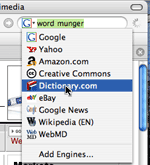
On the plus side, Firefox really does have some killer features. Its search bar is fully customizable, so you can not only automatically search Google, but also Yahoo, Amazon, and Dictionary.com. I added Wikipedia and Google News to my list, and the process was amazingly fast and easy. Configuring the menu the way I wanted took perhaps three minutes.
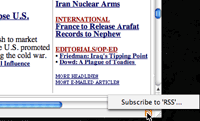
Firefox also offers an incredibly slick way to subscribe to RSS feeds: when you visit a site with a feed available, an icon appears in the lower right corner of the screen. Click on the icon, and a menu of the available subscriptions pops up:
You can specify your feed to appear anywhere: in your bookmarks menu, on the bookmarks bar, or even in a submenu. I’ve created an RSS menu on my bookmarks bar with feeds to several commonly visited sites:
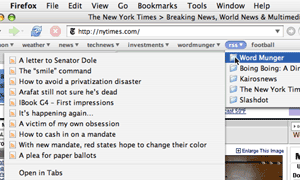
I think ideally the subscription feature would offer more than headlines — maybe the first sentence of each article, too, but it still offers a quick way to stay up to date.
Visually, Firefox’s basic setup still leaves a bit to be desired. The icon bar, with its bright icons, looks dated compared to Safari’s crisp, brushed metal look. Also, the little “loading” icon next to the search bar remains onscreen, even after your page has finished. Even though it stops moving when the page is complete, I still always have a sinking feeling, like I’m waiting for something else to happen.
The interface “buttons” that appear on many web sites look very clunky and Windows-like. Firefox allows users to add “themes” — different looks for the interface — but each of these has its own annoyances, and searching for a usable theme takes time. One significant improvement on the Firefox interface is the way it handles long menus: it offers a scroll bar, simplifying the process of negotiating long forms:
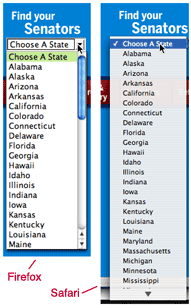
For someone from North Carolina, this is a significant improvement, because I’m constantly scrolling past my state. I imagine if you’re from the top or bottom of the list: Alabama, or Wyoming, say, this wouldn’t be as big of a deal.
Firefox has a different autofill philosophy from Safari. Safari makes its best guess as to what you want in a text box, and if you press Return, you can confirm that guess. This can be a problem, if say, you type “nytimes.com” and Safari guesses you want “nytimes.com/ 2004/ 11/ 12/ international/ middleeast/ 12cnd-iraq.html? hp&ex= 1100322000&en= 82063e5b6cd40c73&ei= 5094&partner= homepage”. Firefox, by contrast, offers a menu of choices, assuming that if you type “nytimes.com”, that’s what you want. You can always scroll down to other items in the list, but Firefox will assume that what you type is what you want. When filling out long online forms, if Safari guesses right, it’s going to save you a lot of time compared to Firefox, but Firefox is never going to make the annoying wrong guess. It’s taken me some time to get used to the Firefox way of doing things, but I think I actually prefer it.
One Firefox feature I know I’m going to love is “undo.” This allows me to use Web forms — such as the one I’m using to write this post — like a regular word processor, with multiple levels of undo. The only feature it’s missing is spell check, but that too can be remedied by downloading an extension.
One final peeve: Firefox doesn’t offer a convenient way to page down using keyboard commands. In Safari, you can page down using the space bar, option-down, or fn-down. Page up is shift-space, fn-up, or option-up. In Firefox, the option-up and option-down commands don’t work, and they don’t do anything else, either. Why not enable option-up and option-down, like in Safari? The option key is much more easily reachable on most keyboards than the fn key. For that matter, why not give functionality to command-up and command-down? In Safari, these take you to the top and bottom of the page. I suspect the reason is that most Firefox developers are working on desktop machines with scroll mouses, so they’ve skimped on the keyboard commands we laptop users rely on. There may be a workaround for this flaw, but I haven’t been able to find it yet.
Firefox is definitely written in the do-it-yourself spirit of open-source software. Safari offers a slicker package from the get-go, but Firefox’s customizability makes it ultimately a more powerful tool. I’ll post again about Firefox sometime in the next few weeks and let you know if I decide to keep it as my default browser. So far, it’s looking likely that I will.
